
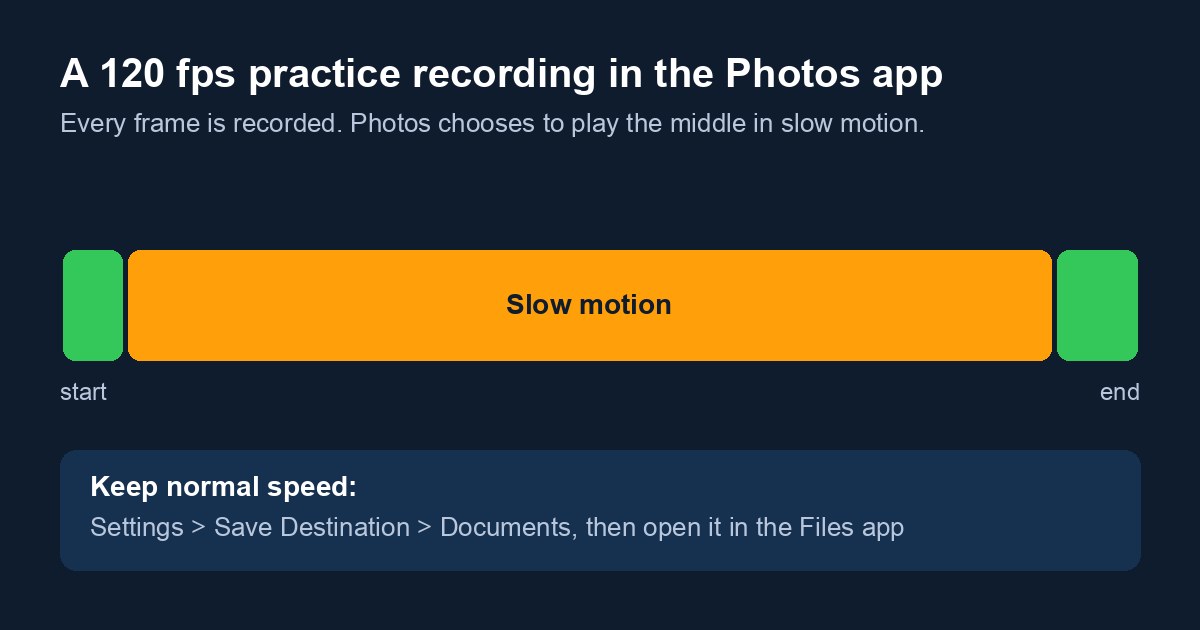
Recording practice at 120 fps or 240 fps is a great idea when you want to break down technique later. An arm swing, a jump take-off or a golf club at impact looks sharp and smooth when you slow it down. But many coaches notice something strange the first time they watch a full-practice recording in the iPhone Photos app: the first few minutes play at normal speed, then the rest of the practice suddenly turns into slow motion, and it only speeds back up near the end.
Your recording is not broken, and nothing was lost. Video Delay Instant Replay saves every frame at its real time. What you are seeing is how the Photos app treats high frame rate video.
Why Photos plays your practice in slow motion
When the Photos app on iPhone or iPad sees a video recorded at 120 or 240 frames per second, it treats it as a Slo-mo video, the same way it treats clips from the Camera app's Slo-mo mode. Photos plays the start and the end at normal speed and plays everything in between slowed down. That is great for a 10-second clip of a serve. For a whole practice it means most of your session plays 4 times slower (120 fps) or 8 times slower (240 fps) than real life.
The slow motion also sticks when you share the video from Photos, for example by AirDrop, email, WeTransfer or an upload to your team's video platform. The exported file has the slow motion built in.
Recordings at 30 or 60 fps are not affected. Photos plays those at normal speed from start to finish.
Best setup: record at high frame rate, save to Documents
If you want the high frame rate, keep it and simply save your recordings somewhere Photos does not touch them:
- Open Settings in Video Delay Instant Replay.
- Tap Save Destination and choose Documents.
- Record your practice as usual.
- Open the Files app and go to On My iPhone (or On My iPad) > Video Delay. Recordings are sorted into a folder for each day, and each video is named with the time it was saved.
Played from the Files app, on a Mac, or in your video analysis software, the recording runs at normal speed. Because every frame is still there, you can slow down or step through any rep you like.
To share a recording, share it directly from the Files app (tap and hold the video, then Share). Do not save it to Photos first, or Photos will turn it into a Slo-mo video again.
Already have a slowed-down video in Photos?
You can switch the slow motion off in Photos without losing anything:
- Open the video in Photos and tap Edit.
- Under the video timeline you will see a strip of thin vertical lines. Lines spaced further apart mark the slow-motion part.
- Drag the two handles on that strip together, so no part is marked as slow motion.
- Tap Done. The whole video now plays at normal speed, and it exports at normal speed too.
Which frame rate should you pick for practice?
- 60 fps is a great choice for full-practice film you mainly watch at normal speed. It is smooth, saves fine to Photos and uses less storage.
- 120 fps gives you smooth slow motion for technique review of fast movements, such as hitting, serving, jumping or swinging. Save to Documents.
- 240 fps is for very fast actions you want to study frame by frame. Save to Documents, and keep in mind that it uses much more storage over a long practice.
Higher frame rates use more storage and give each frame less light, so in a dim gym the picture can look a little noisier than at 60 fps. For a long session, check that your iPhone or iPad has plenty of free space before you press record.
You can change the frame rate at any time from the video format button on the main screen of Video Delay Instant Replay.
Quick answers
Is my high frame rate recording damaged?
No. Every frame was recorded and saved at its real time. The Photos app only changes how the video is played and exported.
Why does the video start at normal speed and then slow down?
Photos treats 120 and 240 fps videos as Slo-mo. It plays a short part at the start and at the end at normal speed and slows down the middle.
How do I keep 120 fps recordings at normal speed?
In Video Delay Instant Replay, go to Settings > Save Destination and choose Documents. Watch and share the recordings from the Files app instead of Photos.