
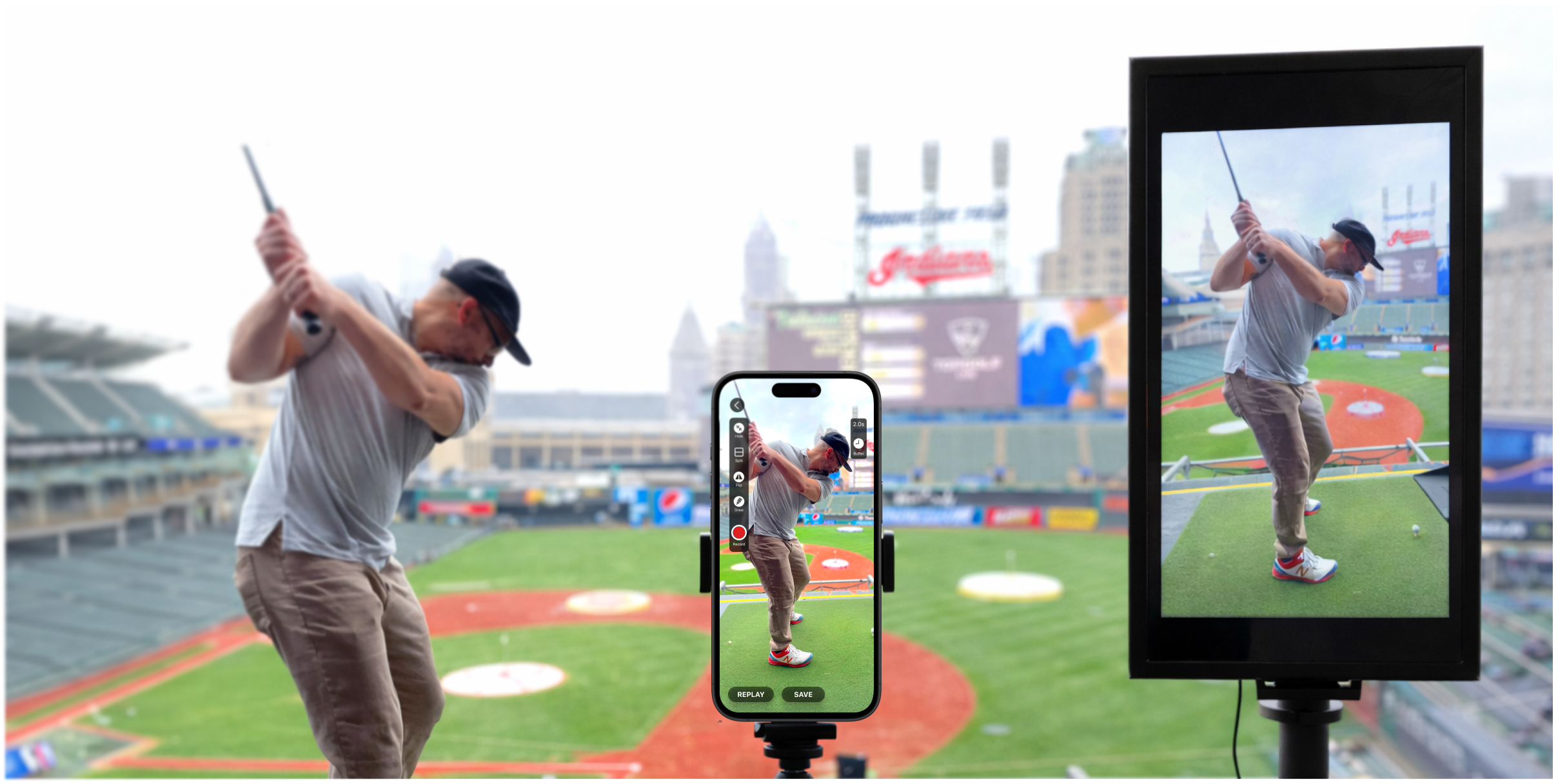
Most external screens (TVs, computer monitors, projectors) are designed for horizontal (wide / landscape) viewing. When you connect your iPhone or iPad to an external screen using an HDMI cable or AirPlay:
- The video usually appears in horizontal orientation by default.
- If you physically stand the external screen vertically (tall / upright), the picture often ends up sideways, cropped, or with black bars — it doesn’t fill the screen properly.
Video Delay Instant Replay (version 3.15.3 and later) includes a simple fix: the “External screen rotation” setting. This rotates only the video sent to the external screen, so it fills a vertically mounted TV or monitor correctly — perfect for viewing in tall mode.
This is especially useful for golf coaches, sports facilities, gyms, driving ranges, or any setup where mounting a monitor or TV vertically saves space or provides players/coaches with a better viewing angle.
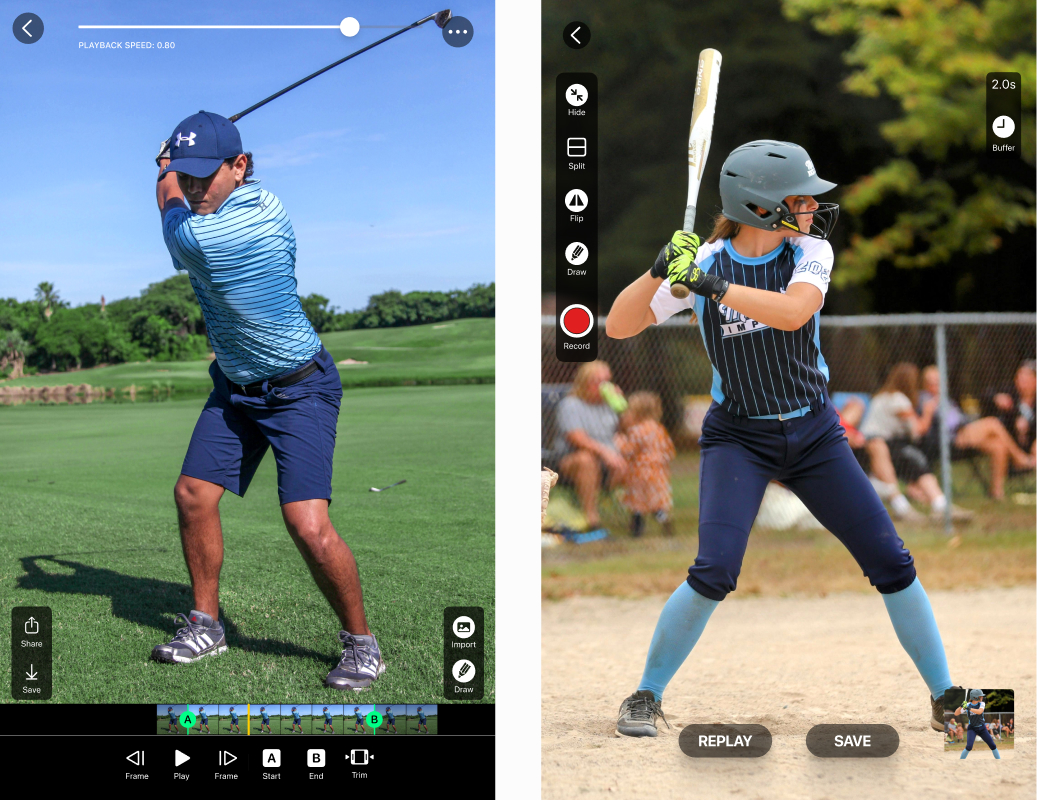
Step-by-step setup for vertical mode on external screen:
- Stand your external screen (TV or monitor) upright.
- Hold your iPhone or iPad the normal way – upright, not sideways.
- Open Video Delay Instant Replay.
- Open Settings (look for the gear icon).
- Find and turn on the toggle called “External screen rotation”.
- Connect your device to the external screen:
- Via HDMI cable (using the right adapter), or
- Via AirPlay (to Apple TV or compatible smart TV).
- Once connected, find the yellow button labeled “0” on the external screen view (or overlaid in the app).
- Tap the yellow “0” button several times:
- Each tap rotates the video 90 degrees (0° → 90° → 180° → 270°).
- Keep tapping until the image appears upright and fills whole external screen, with no black bars or cropping.
Done! Your video now matches vertically mounted external screen perfectly.
Quick tips for flawless Video Delay setup:
- The rotation only affects what’s shown on the external screen – your iPhone/iPad screen stays normal.
- Don’t see the yellow button? Make sure “External screen rotation” is turned on before connecting, then reconnect the cable or AirPlay.
- Great for golf swing analysis, batting practice, gym workouts, or any sport where a tall display helps show whole-body motion without wasting space.