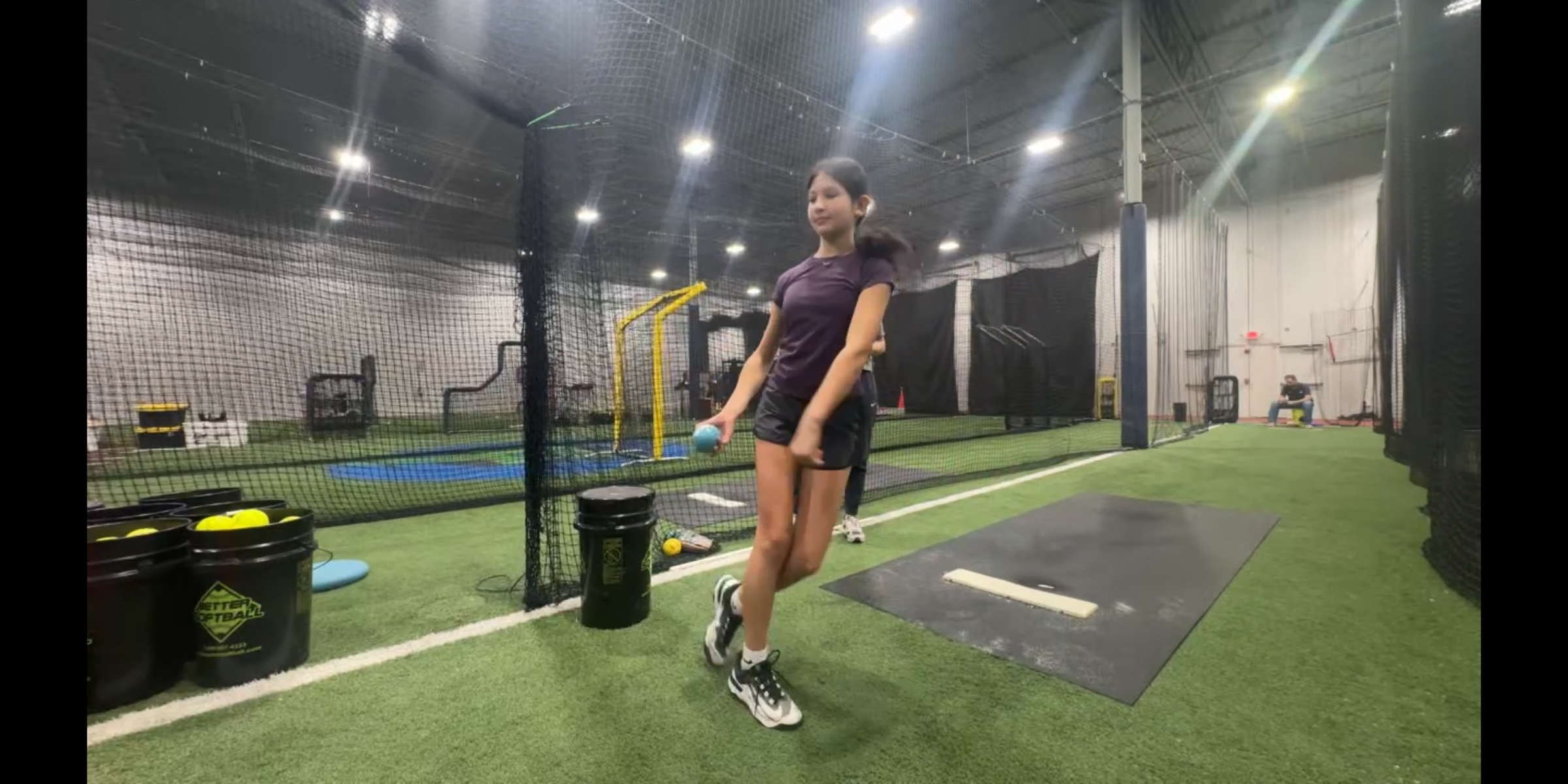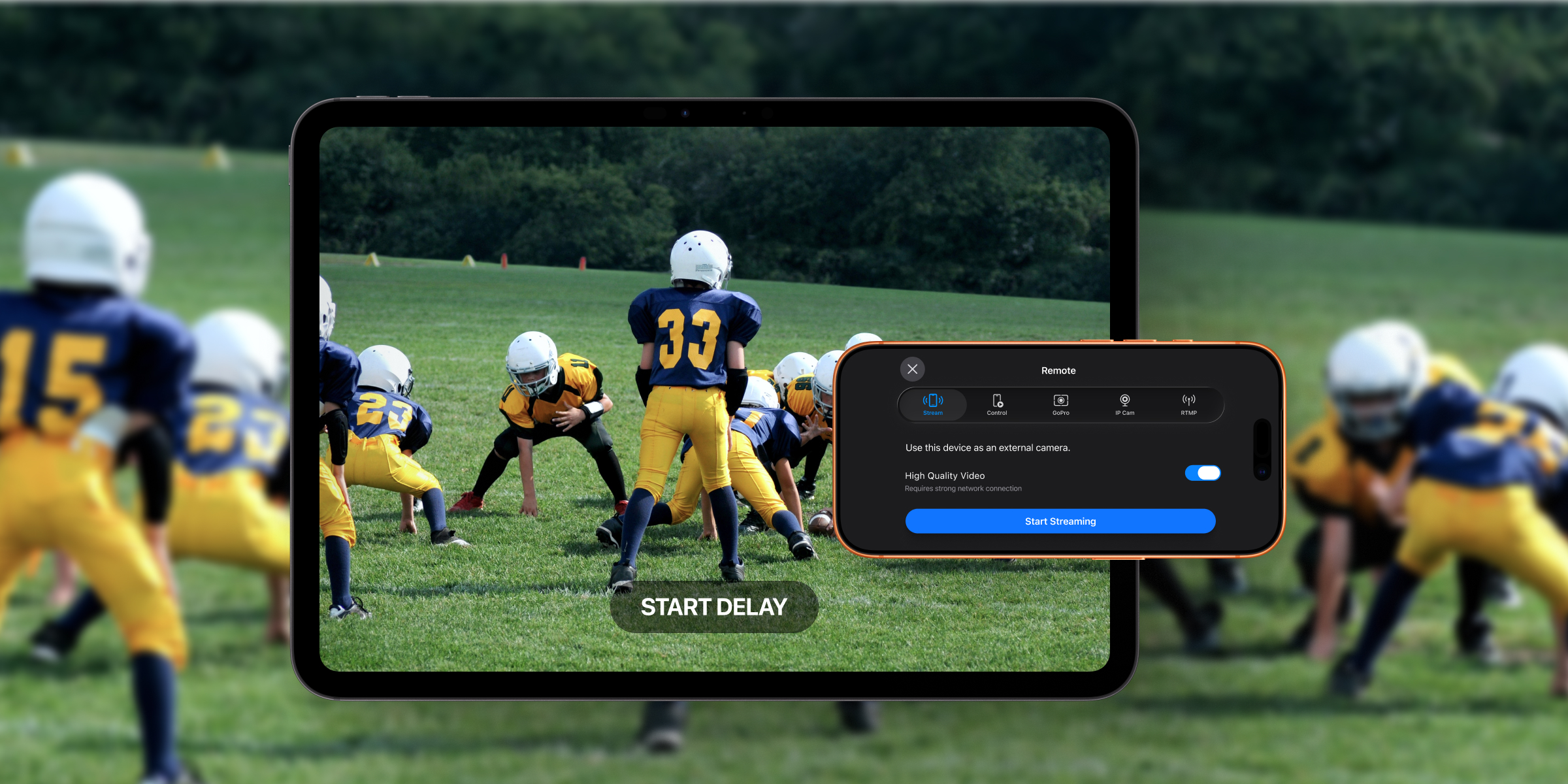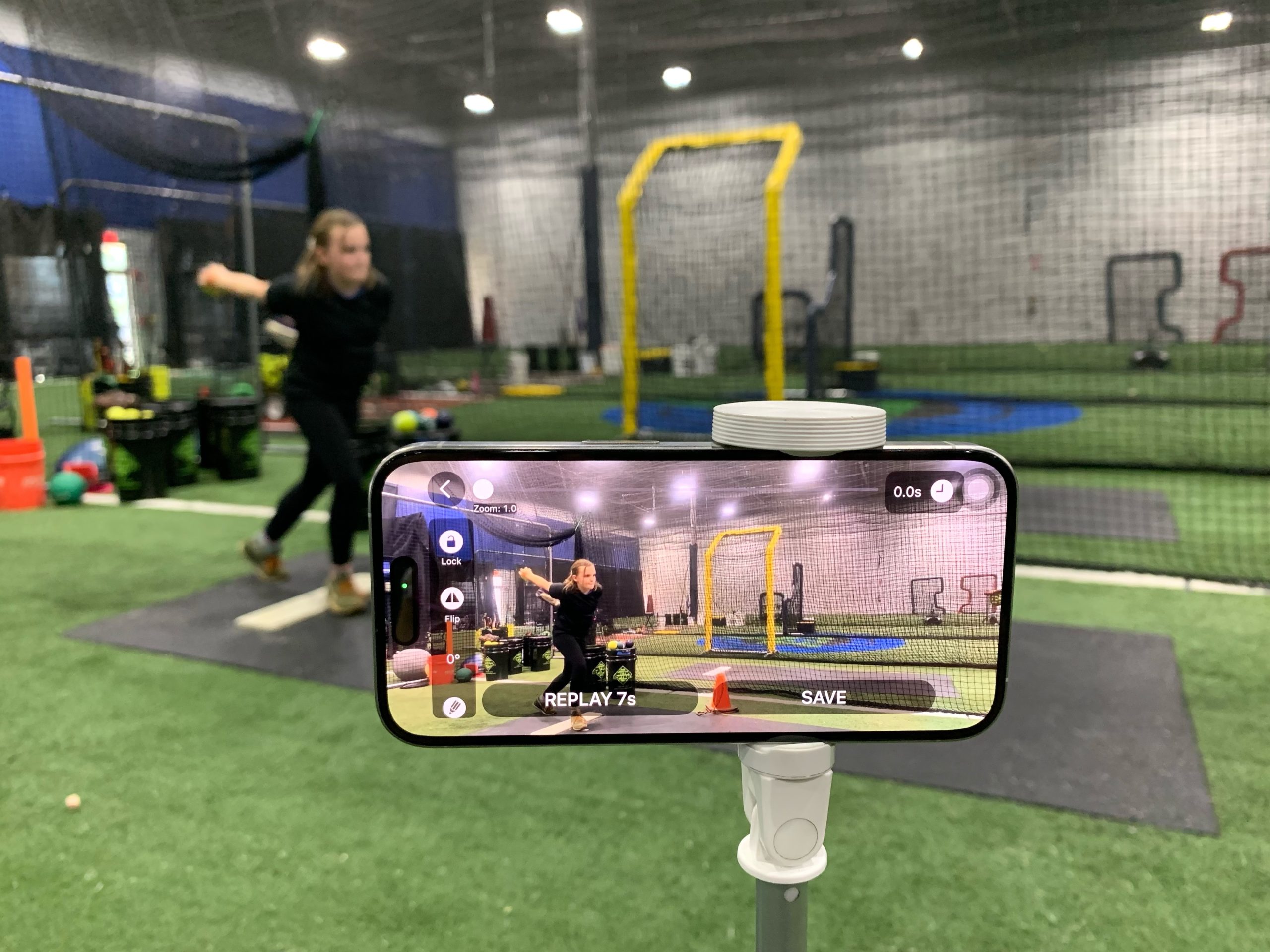
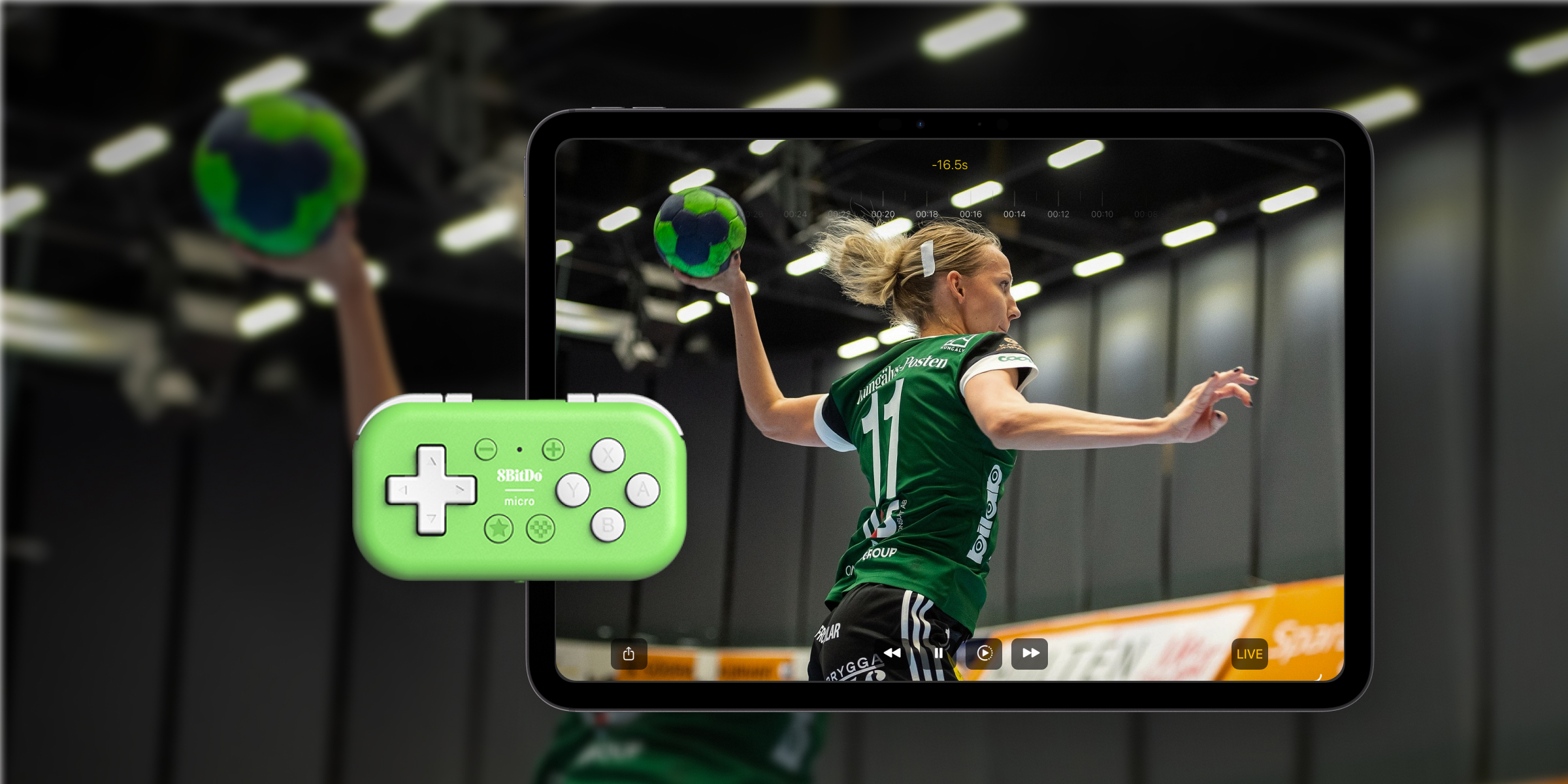
Ever wish you could trigger instant replay, save a clip, or adjust the delay without walking over to your iPhone or iPad? With game controller support, you can control the Video Delay Instant Replay app from across the field, batting cage, or the gym.
That means more hands-free replay, faster feedback, and less stopping between reps. For coaches and athletes, it is an easy way to keep practice moving while still using instant video feedback to improve form and performance.
What You Need for a Hands-Free Replay
- Video Delay Instant Replay subscription (v3.16.2 or later)
- A controller that acts like a keyboard.
We recommend the 8BitDo Micro gamepad for its compact size and Bluetooth keyboard mode, but any controller or Bluetooth keyboard that sends letter keys will work.
Setting Up Your 8BitDo Controller
Before using the gamepad to control the app, you must connect it to your device.
- On your 8BitDo Micro, turn the mode switch to K.
- Press Home button to turn on the gamepad.
- Hold the Pair button for 1 second until the light starts blinking quickly.
- On your iPhone or iPad, go to Settings, choose Bluetooth, and pick 8BitDo Micro gamepad.
- LED becomes solid when the connection is successful.
Once a gamepad is connected and on, the Video Delay app will automatically recognize keyboard input from the controller. No extra setup needed.
How to Use Controller with the Video Delay App
Most app features are linked to keyboard keys. That means you can use a controller to start a delay, manage replay, save clips, and rewind the playback without touching the screen.
This makes hands-free replay especially useful during sports practice, skill training, and workouts where you want quick feedback without breaking rhythm.
Customizing Your Controller Buttons
Following a golf coach’s recommendations, we’ve programmed the gamepad for one-handed use in portrait mode. You can remap the buttons to match the actions you use most often.
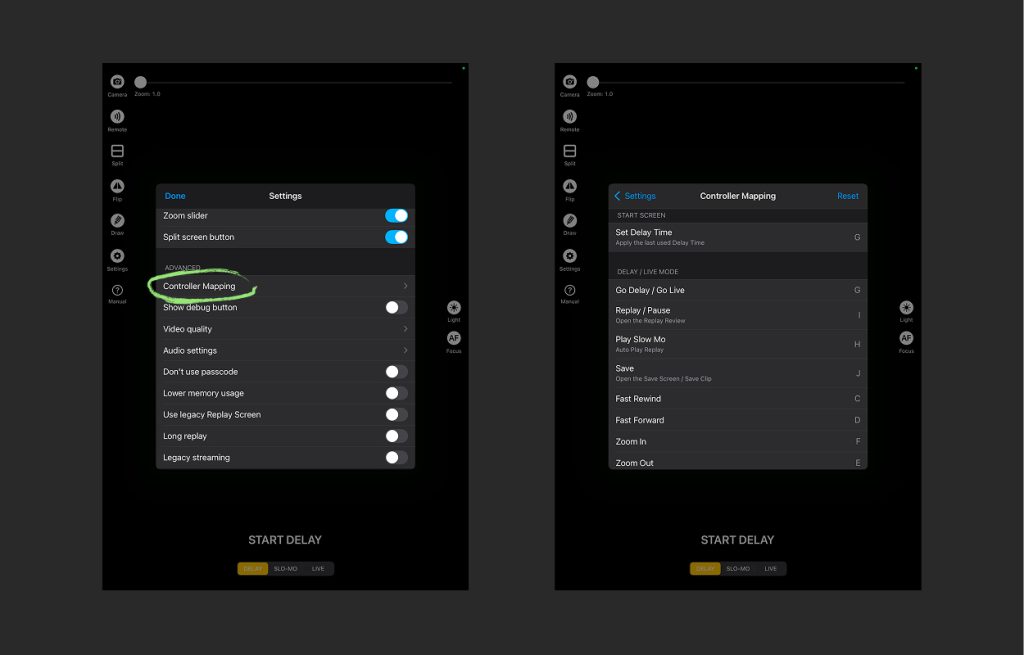
- Open the Video Delay app Settings → Advanced → Controller Mapping.
- Tap the action label in the app to select which control you want to change.
- On your gamepad, press the button you want to assign to this action. The new button mapping takes effect right away.
If you assign a button that is already mapped to another function, the app will alert you and let you reassign it.
💡 Tip: Tap Reset in the top-right corner to bring back the default controller mapping.
Available Actions and Corresponding Keys
Start Screen
| Action | Description | Default Key |
|---|---|---|
| Set Delay Time | Open the Delay Time picker | G |
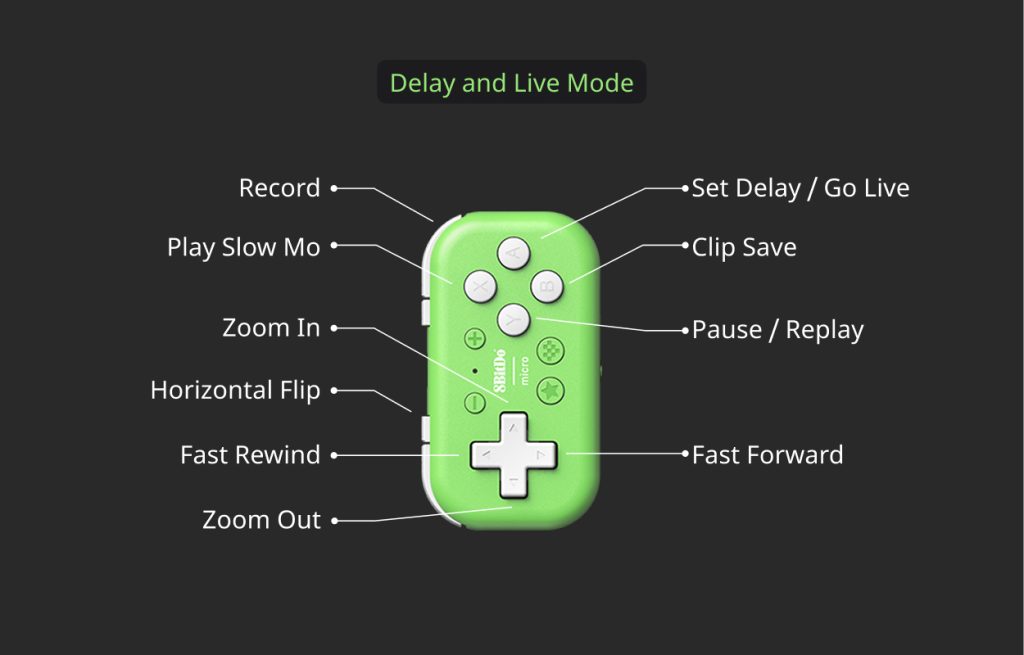
Delay / Live Mode
| Action | Description | Default Key |
|---|---|---|
| Go Delay / Go Live | Start Delay or jump to Live | G |
| Replay / Pause | Open Replay Review and pause | I |
| Play Slow Mo | Play slow-motion replay | H |
| Save | Save short clip | J |
| Fast Rewind | Hold to rewind the playback. The longer you hold, the faster it goes. Release to stop. | C |
| Fast Forward | Hold to scrub forward. The longer you hold, the faster it goes. Release to stop. | D |
| Zoom In | Zoom into the video | F |
| Zoom Out | Zoom out | E |
| Record | Start/stop recording | M |
| Flip | Mirror the video horizontally | L |
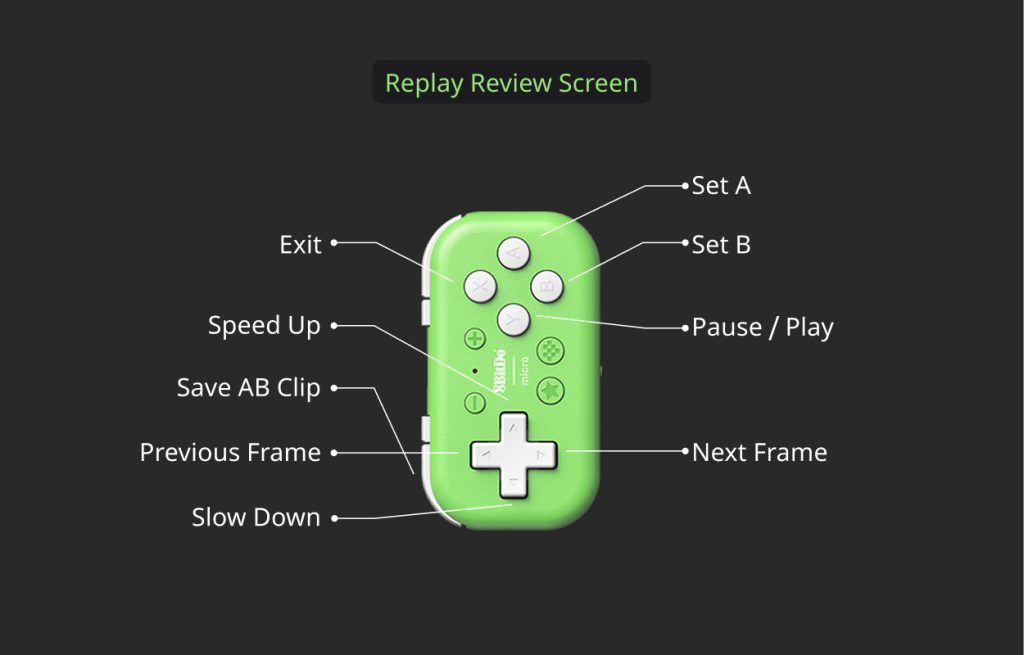
Replay Review Screen
| Action | Description | Default Key |
|---|---|---|
| Exit | Close the Replay Review | H |
| Pause / Play | Toggle playback | I |
| Set A | Set loop start point | G |
| Set B | Set loop end point | J |
| Speed Up | Increase playback speed | F |
| Slow Down | Decrease playback speed | E |
| Previous Frame | Step back one frame | C |
| Next Frame | Step forward one frame | D |
| Save A-B Clip | Export the A–B Loop | K |
Save Screen
| Action | Description | Default Key |
|---|---|---|
| Exit | Exit without saving | H |
| Save Clip | Save the clip to Photos | J |
Training Tips for Hands-Free Replay with Video Delay app
Here are a few simple ways to use a controller during practice:
- Mount your iPad on a tripod and keep the controller in your pocket or on your belt, so you can trigger replay without walking over to the screen.
- Pair the app with a GoPro for a fully wireless setup: GoPro as the camera, iPad as the display, and the controller as your remote.
- Use a small number of buttons to control various actions, since the same key can do different things on different screens.
For coaches who used older TiVo DVRs for video feedback, this setup will feel familiar. You still get quick replay and easy control during practice, but now everything fits into a lighter, more portable system.
FAQ
Does the Video Delay app works with any Bluetooth controller or keyboard?
Yes. Any device that behaves like a keyboard and sends standard letter keys from a to z should work.
Can I use this controller with a GoPro at the same time?
Yes. You can connect a GoPro as the camera source and use the controller for hands-free control. In MultiCamera Mode, you can even record from both the GoPro and your device camera at the same time.