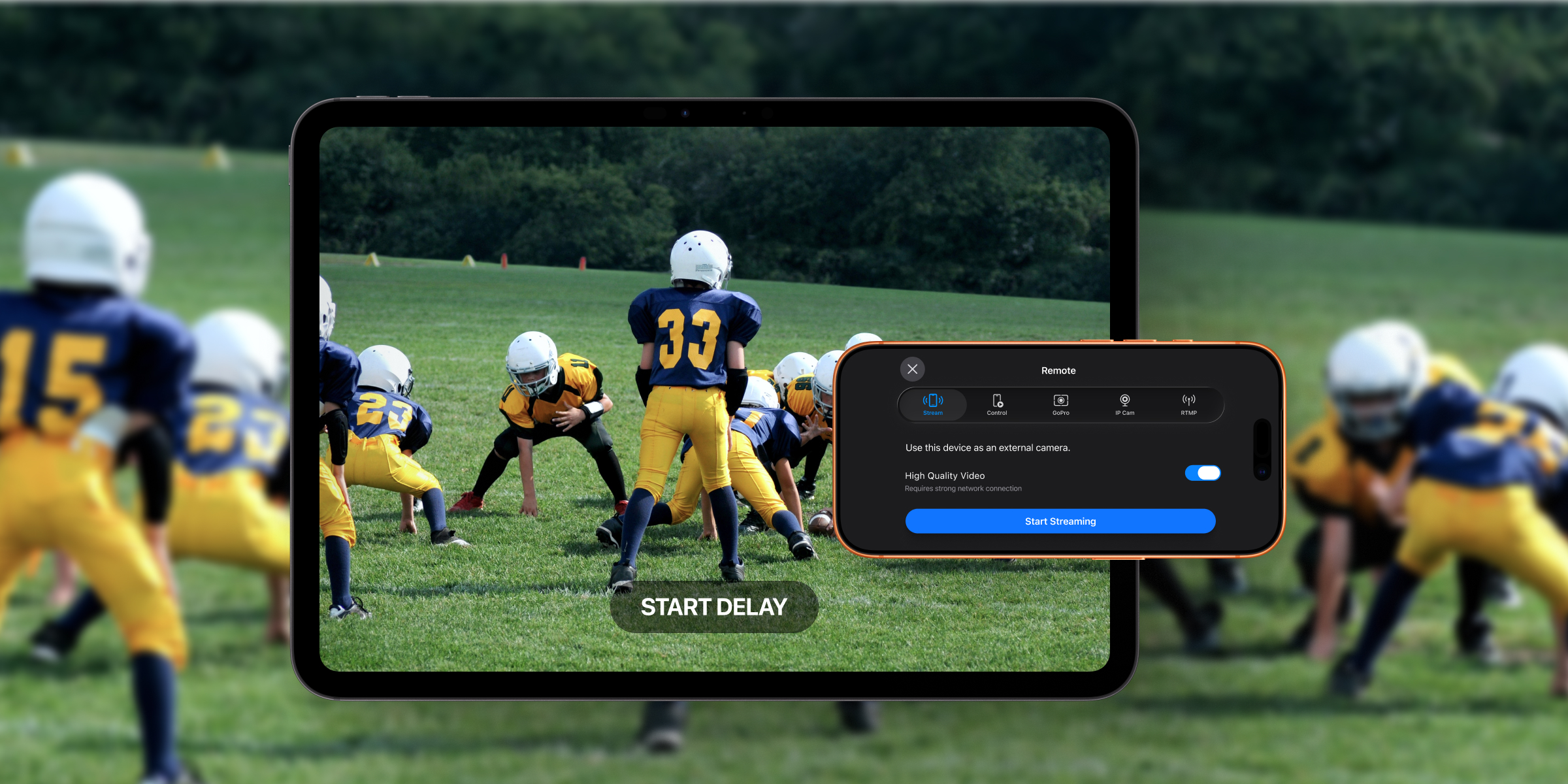
If you’re a coach or athlete who wants more than your iPhone or iPad can give you on its own — a wider angle, a waterproof camera, an underwater view, a feed from across the gym, or a live broadcast input — the Video Delay Instant Replay app has you covered.
Does the Video Delay App Work With an External Camera?
Yes. The Video Delay Instant Replay app supports external cameras on iOS and iPadOS, with four main ways to connect:
- iPhone or iPad streaming — use one Apple device as a camera and another as the controller
- GoPro cameras — connect over the GoPro’s own Wi-Fi hotspot
- USB-C cameras into an iPad — HDMI cameras (via a capture card), USB-C cameras like Sony, or even an Android phone as a webcam
- IP cameras over Wi-Fi (RTSP) — connect a network camera anywhere on the same Wi-Fi
Each one has its strengths. Pick the one that matches the space you’re working in and the sport you’re coaching — the rest of this post walks through each option in detail.
What Are the Benefits of Using an External Camera?
The whole point of Video Delay is hands-free feedback. You take a swing, finish a vault, complete a turn — and a few seconds later, you watch what just happened. That works fine with a phone propped on a tripod when you’re training solo. But the moment you’re coaching a group, working in a big space, or trying to get an angle the iPad simply can’t reach, an external camera changes what’s possible:
- A gymnastics studio can mount a wide-angle camera high in the corner and capture the whole floor.
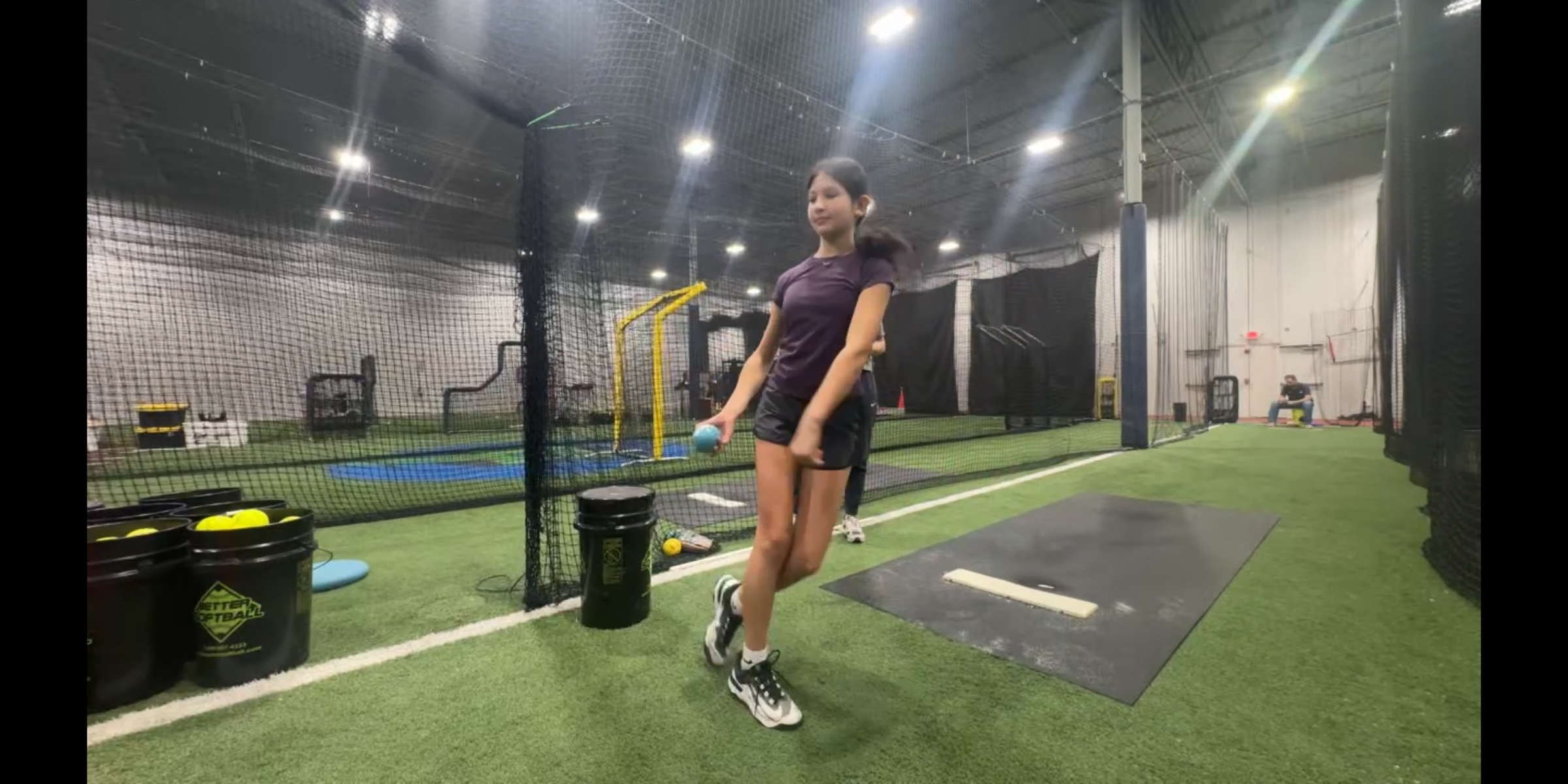
- A baseball or softball coach can place a camera behind the catcher to film pitching mechanics from the catcher’s view, while the iPad stays at the mound.
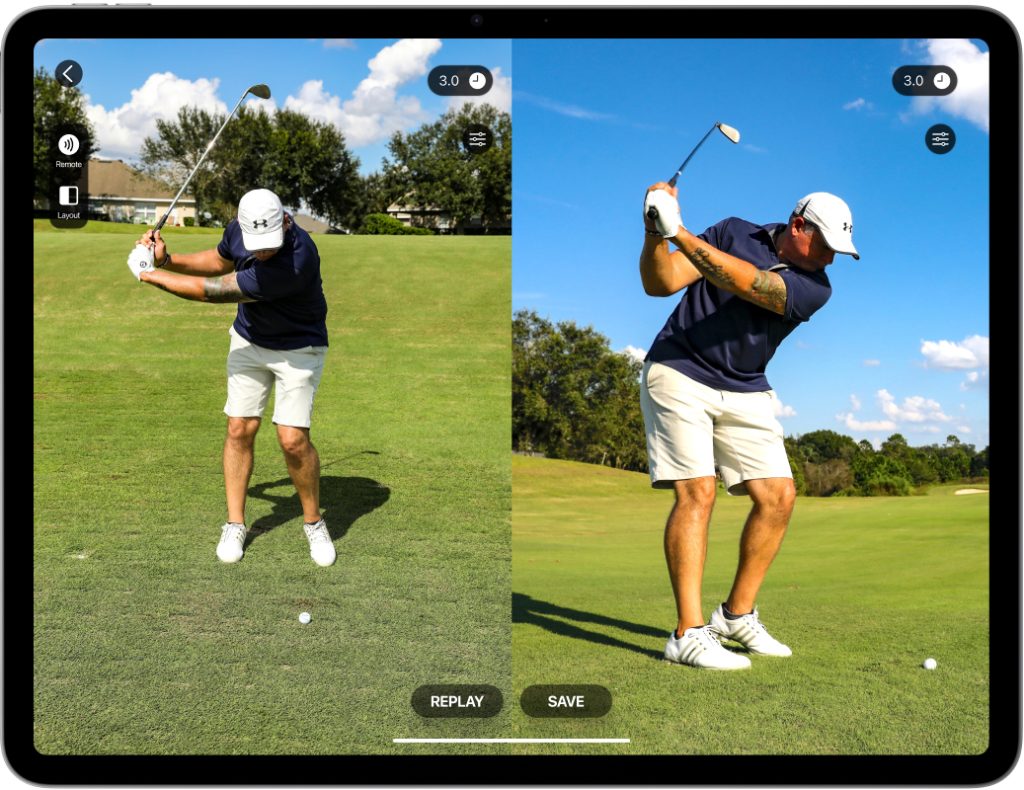
- A golf instructor can keep the iPad at face-on and add a second camera down the line for true two-angle analysis.
- A volleyball coach can put a camera behind the baseline to capture the full serve — toss, approach, and contact — while the iPad sits courtside for the player to review between reps.
- A swim coach can watch underwater stroke mechanics from the deck.
- A springboard diver can have a camera near the board with the playback screen at the pool deck.
Once you free the camera from the iPad, the app’s delay and replay features get dramatically more useful.
Option 1: iPhone-to-iPad Streaming (The Free One)
If you already own two Apple devices, you already own an external camera setup. The Video Delay app’s Remote feature lets one device act as a camera and the other as the controller and playback screen.
This is the lowest-friction option, and we recommend that coaches try it first.
How to set it up
- Install the Video Delay app on both Apple devices and make sure they’re on the same Wi-Fi network.
- On the device you want to use as the camera, open the app and select Remote → Stream and tap “Start stream”
- On the second device — your controller — select Remote → Control, then tap “Join & Control the Stream” to pair it with the camera device.
- Mount the camera at the angle you want (on a tripod across the gym, on the pool deck, behind the catcher).
- Run the controller device at your coaching position. You’ll see the live feed, set delay times, trigger replays, and save clips from there.
When it shines
Whenever you need a two-angle view, a wider camera angle, or you don’t have access to a bigger screen:
- Two-angle work — golf lessons at the range with the iPad at face-on and an iPhone behind the player for down-the-line, or batting practice with one device tracking the swing and the other on the ball flight.
- A wider angle than the iPad alone can give you — gymnastics studios with the iPad at the chalk box and an old iPhone mounted high near the beam or vault to capture the full apparatus.
- A camera somewhere the iPad can’t go — baseball and softball coaches filming pitching mechanics from behind home plate with an iPhone, while the iPad stays near the mound for the pitcher to walk over and watch.
- A bigger playback screen near your athletes — volleyball coaches with an iPhone on a tripod behind the baseline capturing serves, and the iPad courtside for the player to review between reps.
💡 Pro tip: This works best indoors with a strong Wi-Fi signal. Outdoors, keep the two devices reasonably close together. If you can see one device from the other, you’re usually fine.
Option 2: GoPro (Best for Water and Action Sports)
The Video Delay app supports GoPro®HERO 10 Black and later, including HERO10, HERO11 (Black and Black Mini), HERO12, and HERO13. Each one needs to be running a recent firmware version, which the GoPro Quik app will handle for you.
The connection works over Bluetooth and Wi-Fi together: the iPhone or iPad pairs with the GoPro over Bluetooth, then the GoPro acts as a Wi-Fi access point for the live video stream.
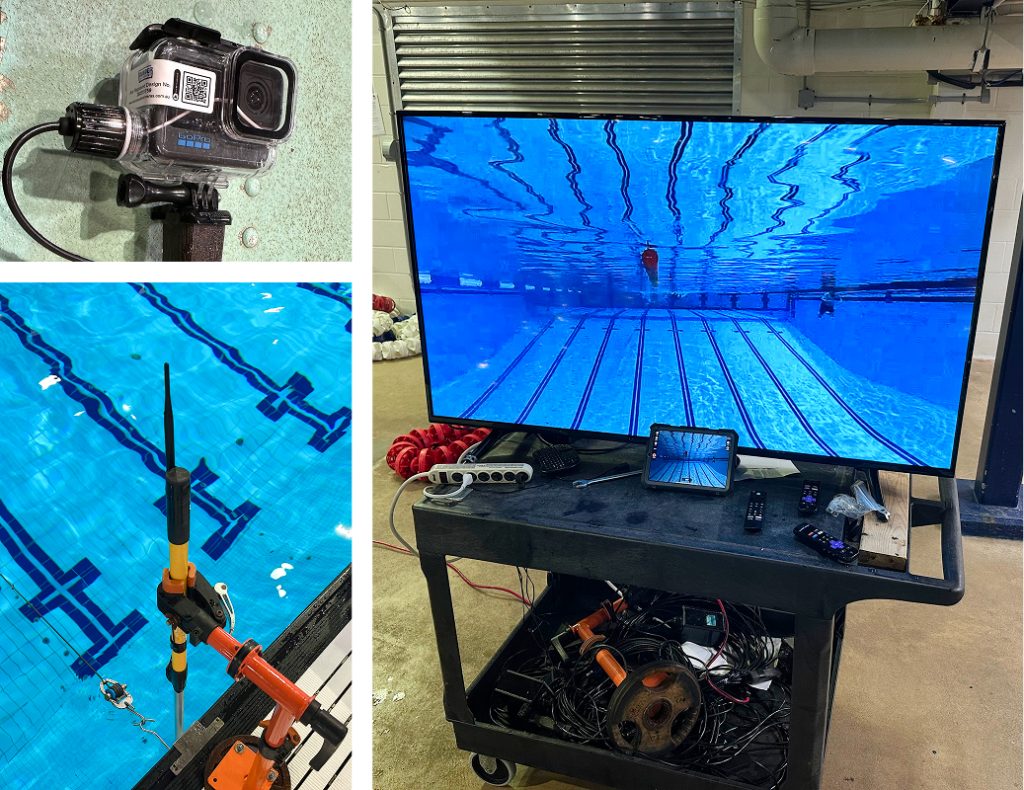
This is the workhorse for swimming, diving, and any sport near or in the water. Several swim coaches use a GoPro on a Dunder Pole or similar underwater pole rig to film stroke mechanics from below the surface — something no other setup can do.
How to set it up
On your GoPro:
- Turn on Wireless Connections (Dashboard → Preferences → Wireless Connections → Connections).
- Tap + Pair Device in the GoPro Dashboard. On some devices you may need to select “Quik app”. The camera will start searching for devices to pair with.
On your iPhone or iPad:
- Open the Video Delay app and go to Remote → GoPro.
- Tap Connect to GoPro. Your device will scan for the GoPro.
- Follow the prompts to join GoPro’s Wi-Fi network and allow Local Network and Bluetooth access.
Once connected, you’ll see a live preview of the GoPro’s feed in the app. Mount the camera where you want it — pole, tripod, helmet, underwater rig — set your delay, and you’re filming.
💡 First time connecting? You may need to pair the GoPro using the GoPro Quik app first. After that initial setup, the camera will be visible to other devices on the network, and you can connect directly through Video Delay from then on.
When it shines
- Swim coaches using underwater poles to capture stroke turnover and body position.
- Springboard divers with a GoPro near the board and the iPad on the deck, watching entries seconds after the splash.
- Baseball/softball coaches mounting a small action camera in tight angles where a phone wouldn’t fit.
- Outdoor settings where you need a battery-powered, weather-tolerant camera. The GoPro is the simplest answer to “I need a wireless outdoor camera that works.”
⚠️ One caveat for swimming pools: the high-output LED lighting in some newer pool facilities can interfere with the GoPro’s Wi-Fi signal. If your stream stutters, move your iPad closer to the GoPro and shorten the line of sight between them. If you get stuck on the “Starting Stream” screen, resetting the GoPro’s wireless connections (Dashboard → Preferences → Wireless Connections → Reset Connections → Reset All) and pairing again usually fixes it.
Option 3: USB-C Cameras Into an iPad (HDMI, Sony, or Even an Android Phone)
If you’ve got a real camera with an HDMI output, a modern USB-C camera, or even just an Android phone, you can plug it straight into a USB-C iPad and use it as your camera source. There are three flavors of this setup:
- HDMI cameras (camcorders, DSLRs, mirrorless, broadcast feeds) via a USB-C HDMI capture card
- USB-C cameras that act as a webcam natively (newer Sony, Canon, and similar models)
- Android phones with USB webcam mode (Google Pixel and other recent devices)
A few important details before you start:
- iPad only. iPhones don’t accept these inputs — there’s no software workaround. You need an iPad with a USB-C port.
- The camera needs to be UVC-compliant. UVC is the universal standard that enables any device to act as a webcam. If your camera (or capture card) shows up as a webcam on a Mac or PC, it should work with the iPad too.
- Resolution and frame rate can be adjusted in the app under Settings → Video format once the iPad recognizes the source.
How to set it up with an HDMI camera and capture card
- Plug the HDMI cable from your camera into a UVC-compliant USB-C HDMI capture card.
- Plug the capture card’s USB-C end into your iPad.
- Open Video Delay – the app should show your external camera feed.
- Set your delay time.
- Mirror the iPad to a TV (via AirPlay or HDMI-out) if you want a larger viewing screen.
How to set it up with a USB-C camera (Sony, Canon, etc.)
Many newer Sony, Canon, and mirrorless cameras can act as a USB webcam without a capture card — just a USB-C cable.
- Check that your camera’s USB / streaming mode is enabled in its settings (usually called “Webcam,” “USB Streaming,” or similar).
- Connect the camera to your iPad with a USB-C to USB-C cable.
- The Video Delay app should recognise your external camera as playback source.
How to set it up with an Android phone as a webcam
If your Android phone supports USB webcam mode (Google Pixel devices do, and a growing number of others), you can use it as a high-quality external camera for the iPad.
- Open the Video Delay app on your iPad.
- Connect your Android phone to the iPad with a USB-C to USB-C cable.
- On the Android phone, open USB Preferences and select Use USB for → Webcam.
- The Video Delay app should now recognize the phone as an external camera source.
- Adjust resolution and frame rate inside Video Delay under Settings → Video format.
When it shines
- Gymnastics studios using an existing camcorder or DSLR they already own for meets.
- Golf academies running a high-quality DSLR or mirrorless for swing analysis with shallow depth of field.
- Baseball/softball facilities pulling a feed from a fixed broadcast camera in the cage.
- Coaches with a spare Android phone who want a second camera angle without buying any new hardware.
- Anywhere a coach already owns a “real” camera (or a phone with a great sensor) and wants to keep using it.
Option 4: IP Cameras Over Wi-Fi (RTSP)
The Video Delay app supports RTSP-compatible IP cameras — the standard most professional and prosumer network cameras use. Connect the camera to your Wi-Fi network, point the app at the camera’s RTSP stream URL, and the feed shows up in the app like any other camera source.
This is the right answer when the camera needs to live somewhere a cable can’t easily reach — across a gymnastics floor, at the back of a pool deck, on a fence at a baseball field, or high in the corner of a dive well.
How to set it up
- Power on your IP camera and connect it to the same Wi-Fi network as your iOS device.
- Find the camera’s RTSP stream URL in its app or settings (usually something like rtsp://[camera-ip]:554/stream).
- In the Video Delay app, open Remote → IP Cam, paste the RTSP URL and tap “Connect”
- The feed appears, and you can apply delay, slow motion, and replay just like with the built-in camera.
We’ve tested this extensively with PTZOptics Move SE cameras — they’re not cheap, but the quality is excellent, and the pan-tilt-zoom is genuinely useful for filming a whole gymnastics floor or baseball field. Any RTSP-compliant camera should work, though.
When it shines
- Gymnastics studios with one IP camera mounted high in the corner, covering the entire floor.
- Swim and diving facilities where the camera mounts on the wall above the pool, and the iPad stays on the deck.
- Baseball/softball cages and fields where running cables isn’t practical.
- Any venue where you want a permanent, high-quality camera installation and a portable iPad as the playback station.
A note on RTMP
The app also supports RTMP streaming as a camera input, in addition to RTSP. RTMP is a different streaming protocol — most commonly seen in live broadcasting setups (OBS, Wirecast, encoder boxes that push out an RTMP feed). It’s a rarer use case for everyday coaching, but if you already have an RTMP stream available, the app can pull it in just as it would an RTSP source.
Quick External Cameras Comparison
| Setup | Best For | Things to Watch For |
| iPhone-to-iPad | Two-angle work with gear you already own | Wi-Fi-dependent — can stutter outdoors or in big venues |
| GoPro | Water sports, outdoor, action angles | Pool lighting can interfere with Wi-Fi; battery life limits long sessions |
| USB-C into iPad (HDMI, Sony, Android) | Coaches with existing cameras or a spare Android phone | iPad only (no iPhone); requires a USB-C cable run to the camera |
| IP/RTSP camera | Permanent installs in a facility | Higher upfront cost; needs RTSP URL setup and stable Wi-Fi |
A Note on Other Action Cameras (DJI Osmo, Insta360)
Two camera lines come up often, so they’re worth addressing directly:
- DJI Osmo Action cameras — these don’t expose a public API or RTSP feed for third-party apps, so there’s currently no way to connect them to the Video Delay app. If you have an Osmo, the practical workaround is to use it for separate post-session review rather than live delay.
- Insta360 cameras — we haven’t tested these yet. On paper, models like the X4 and X5 support USB-C webcam mode and RTMP streaming, so they may work through the USB-C-into-iPad option or via RTMP. But Insta360 documents webcam mode primarily for desktop apps like OBS, and we can’t confirm iPad compatibility until we run our own tests. If you’ve tried it, let us know what you found.
Pre-Flight Checklist
Before your first session with an external camera, double-check:
- ✅ Your iOS device runs iOS 13 or later
- ✅ For iPhone-to-iPad streaming, both devices are on the same Wi-Fi and have the app installed
- ✅ For GoPro, Wireless Connections are on, the camera is in pairing mode, and you’ve accepted the Local Network, Bluetooth, and Wi-Fi prompts on your iPhone or iPad
- ✅ For HDMI capture, USB-C cameras, or an Android phone, you’re on an iPad, and the source is UVC-compliant
- ✅ For RTSP cameras, the camera is on the same Wi-Fi as the iPad, and you have the RTSP URL handy
- ✅ You’ve tested the full chain — camera, connection, delay, replay — before training day
Pair It With a Controller and an External Screen
An external camera gets even better when you combine it with two other features the app supports:
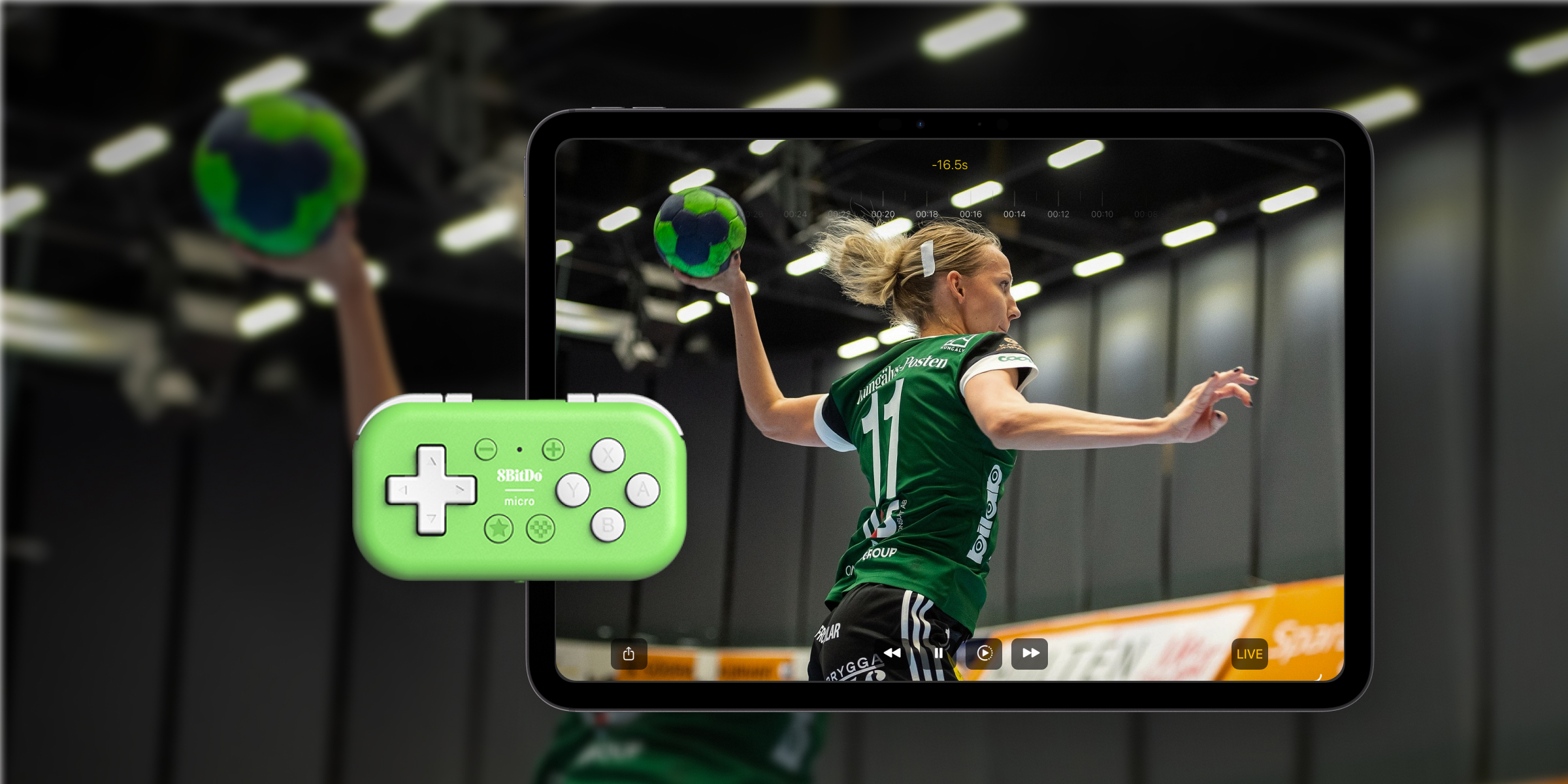
- A Bluetooth controller lets you trigger replays, save clips, and scrub through the buffer without having to walk back to the iPad. We recommend the 8BitDo Micro for its compact size, but any Bluetooth controller or keyboard that sends standard letter keys will work.
- An external screen — a TV or monitor connected by AirPlay or HDMI — lets the whole team watch the replay from where they’re actually training, not from wherever the iPad is mounted.
Together, you can put the camera anywhere, the iPad anywhere, the screen in front of your athletes, and a controller in your pocket — a fully wireless coaching setup with no walking back and forth.
The Bottom Line
External cameras open up Video Delay in ways the built-in camera can’t match — underwater stroke analysis for swimmers, two-angle swing analysis for golfers, full-floor coverage for gymnastics, behind-the-catcher pitching views for baseball and softball coaches, behind-the-baseline serve work for volleyball, and platform-to-deck angles for divers.
For most coaches starting out, the path of least resistance is the cheapest one: two Apple devices and the Remote feature. From there, a GoPro is the natural next step if you work near water or outdoors, a USB-C connection into an iPad unlocks any HDMI camera you already own (or even an Android phone as a webcam), and an RTSP camera is the right call when you’re building a permanent setup in a facility.
If you’re using a camera that isn’t covered here, feel free to reach out — we can’t always test specific models, but we’ll point you in the right direction when we can.
Now go set it up. Your athletes will start seeing things in their training they’ve never noticed before.